Both current versions of Windows run BleachBit the same way, but a few details differ enough to be worth writing down — mostly around permissions and the cleanup features Microsoft now builds into the operating system.
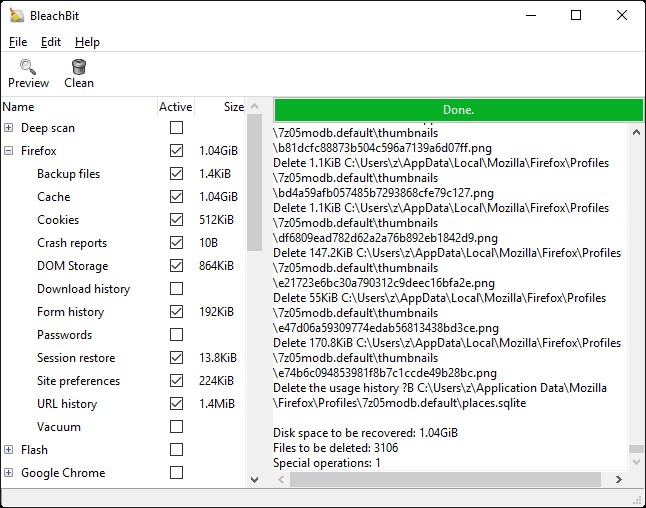
Windows 11
- Launch as administrator when you want to clear Windows update caches or system logs. Started normally, the program quietly skips those areas.
- Microsoft Edge stores its profile data under the same structure as Chrome, so the Edge cleaners behave predictably.
- Storage Sense may already delete part of the Temp folder on a schedule. Overlap is harmless — you will simply recover less on the first run.
- Controlled folder access, if you enabled it, can block shredding inside Documents. Add an exception or shred from another location.
Windows 10
- Older machines usually give up the most space, because years of update leftovers and browser caches have piled up.
- If Internet Explorer or legacy Edge data is still on the disk, those cleaners appear in the list and are safe to check.
- On drives under 128 GB, the free space overwrite option can take a long while. Run it overnight or skip it.
Cleaners worth checking on any Windows PC
- Browser cache and session data for the browser you actually use,
- Windows Temp and per-user temporary folders,
- Thumbnail cache and recent documents,
- Crash dumps and error reports,
- Clipboard and search history, if privacy is your reason for cleaning.
What to leave alone
Passwords, saved form data, and anything marked experimental should stay unchecked unless you know precisely what you are giving up. Deep Scan is slow and rarely worth it on a healthy machine. Detailed reasoning is in the junk file guide.
Ready to install? See the download notes, or compare the tool with the built-in options in BleachBit vs Windows Disk Cleanup.